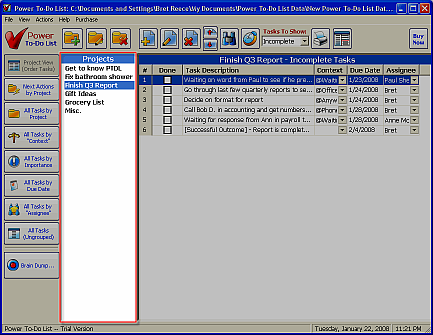
Each task in Power To-Do List has a project. You can have as many projects as you want. Normally, when you're working with your projects, you'll be in "Project View" (the top button on the left side toolbar.) 
In Project View, you can Add, Rename, and Delete Projects. You can also reorder them by simply dragging them up and down the list.
Click on a project in Project View and that project's tasks will show up over on the task list on the right half of the screen.
When you first run Power To-Do List, you'll be viewing your "Active" projects. When you've completed a project, you can "Archive" it by right-clicking on the project name and choosing "Archive Selected Project" or selecting the project and clicking on "Archive Selected Project" from the "Actions" menu up top.
If you want to view your archived projects, click on "Switch to *ARCHIVED* Project List" from the "View Menu". Likewise, to switch back, click on "Switch to *ACTIVE* Project List" from the "View Menu".
If you're into keyboard shortcuts, you can use CTRL+SHIFT+A to toggle back and forth between the two views.