Working with Columns
Each view (left-side buttons) shows a task list with a slightly different set of columns. Each view also remembers any changes you make to its columns.
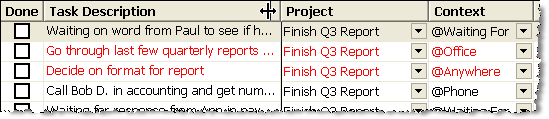
You can change the width of a column by positioning your mouse between two columns and dragging left or right. Drag it all the way into the column to its left to effectively hide the column.
You can change the order of the columns in a view by clicking in the middle of a column header and dragging it to the position you want it to end up.

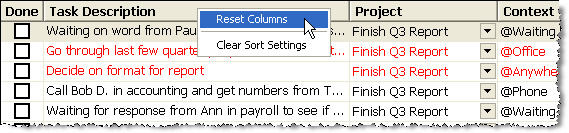
You can reset the columns for a view back to their default settings by right-clicking on a column and selecting "Reset Columns".
Sorting the Task Lists
In all the views except "Project View" and "Next Actions View", you can sort by just about any column. In fact, you can sort by up to three columns.
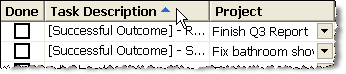
To sort by a column, just click on its column header. If you want to sort in the opposite order, click it again.
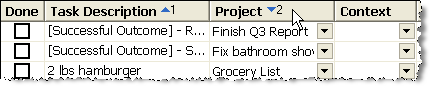
If you want to sort by two columns, sort by the first column, then hold SHIFT or CTRL down while you click on the second one.
If you ever want to clear the sort settings for a view, right-click on one of its columns and select "Clear Sort Settings".
